The show ends.
The edit starts here.
Broadcast to your platforms, keep a private recording, and turn the best moments into something new. Here's how it works in Rewind Live.
Send one feed.
Reach your platforms.
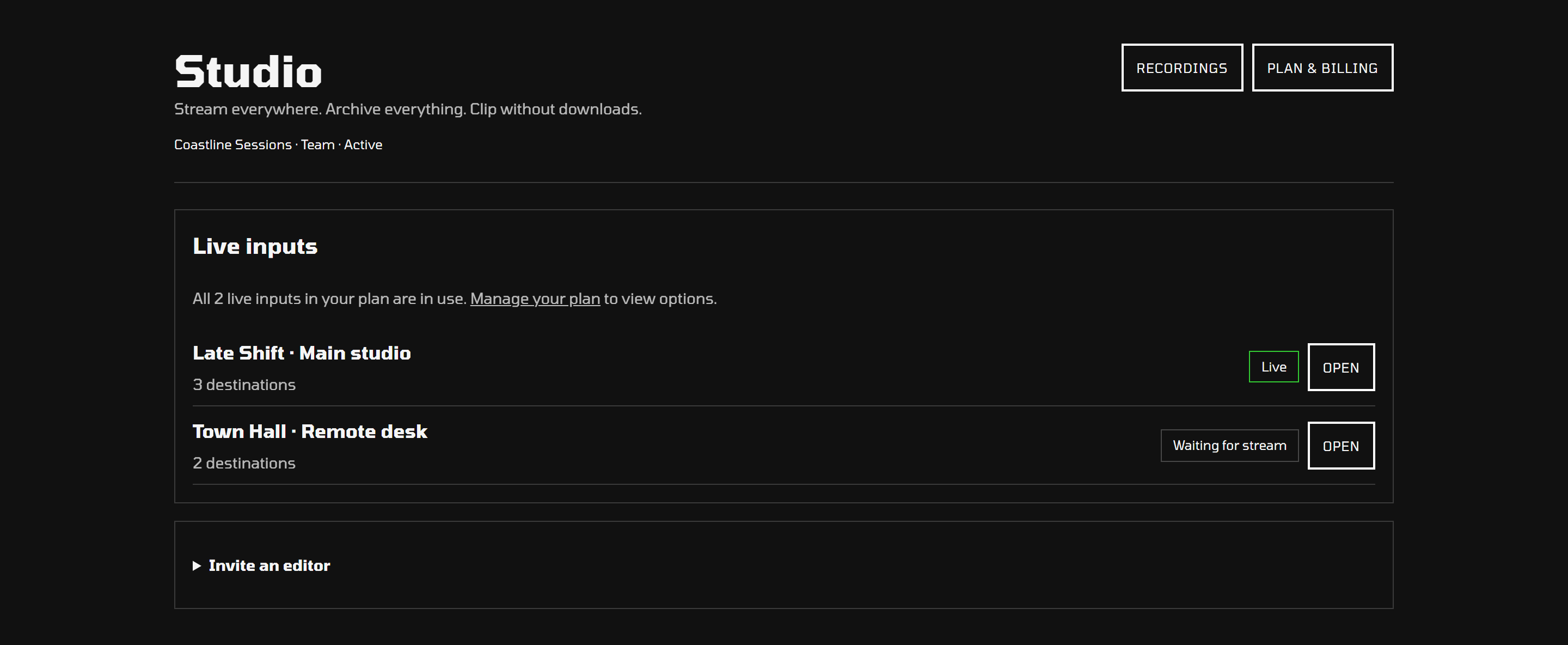
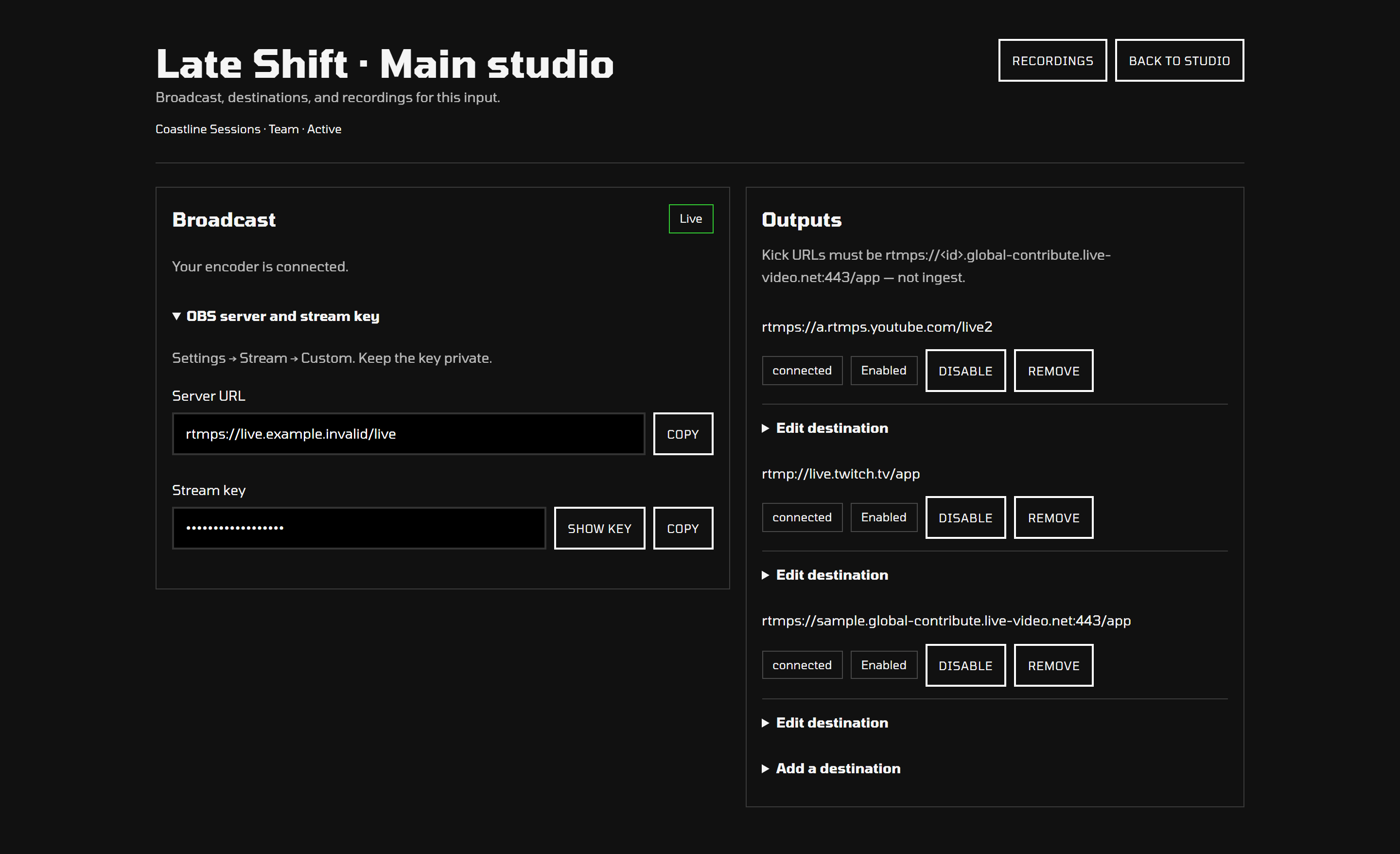
Connect OBS or another encoder to Rewind Live. Add the stream address and key for each destination, then choose where your show goes from Studio.
- Stream to YouTube, Twitch, Facebook, Kick, TikTok, X, Rumble, Dailymotion, Vimeo, LinkedIn, and custom RTMP destinations
- Reuse your live input for the next broadcast
- Update destination settings or switch an output on or off
Keep a copy
of your show.
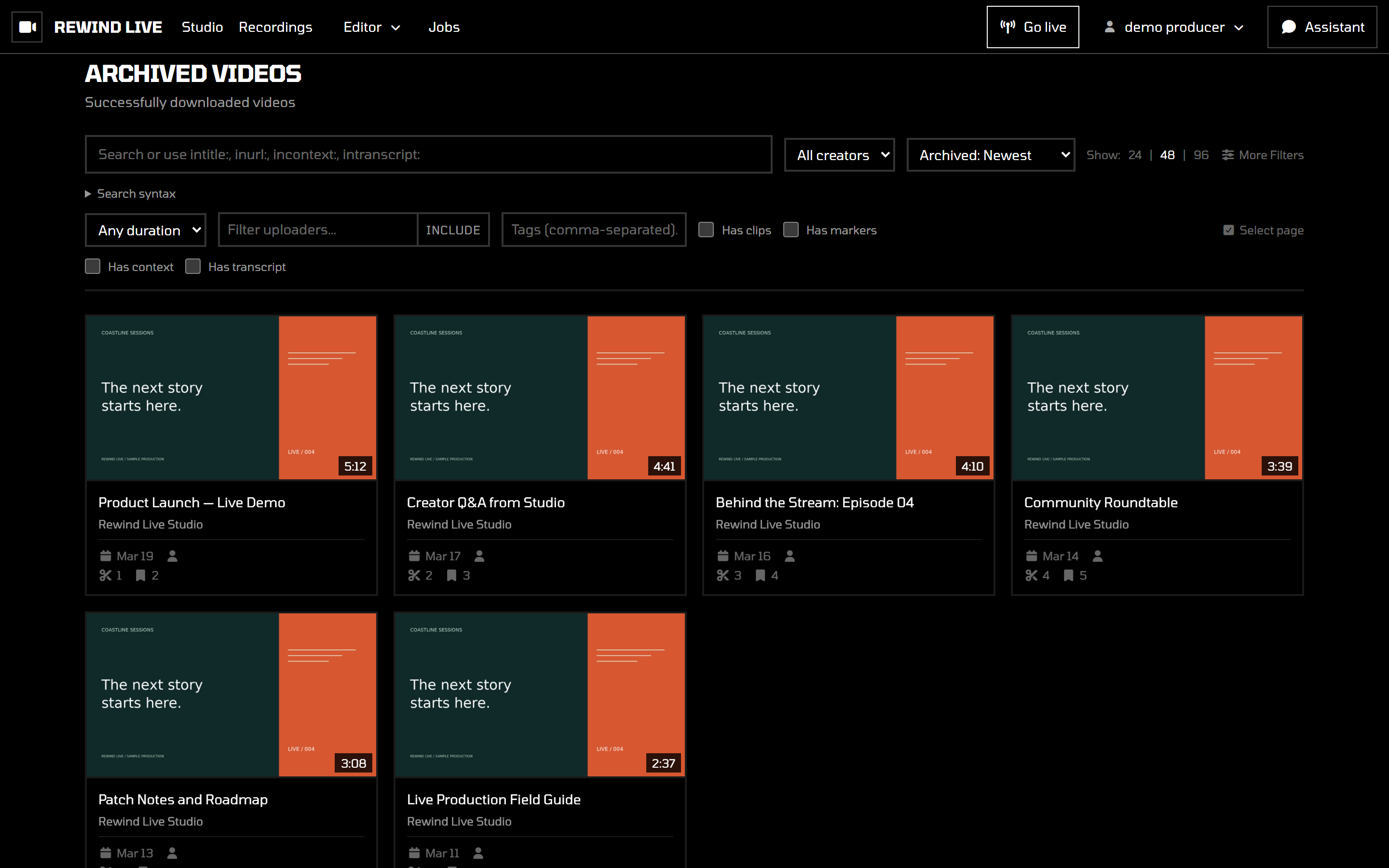
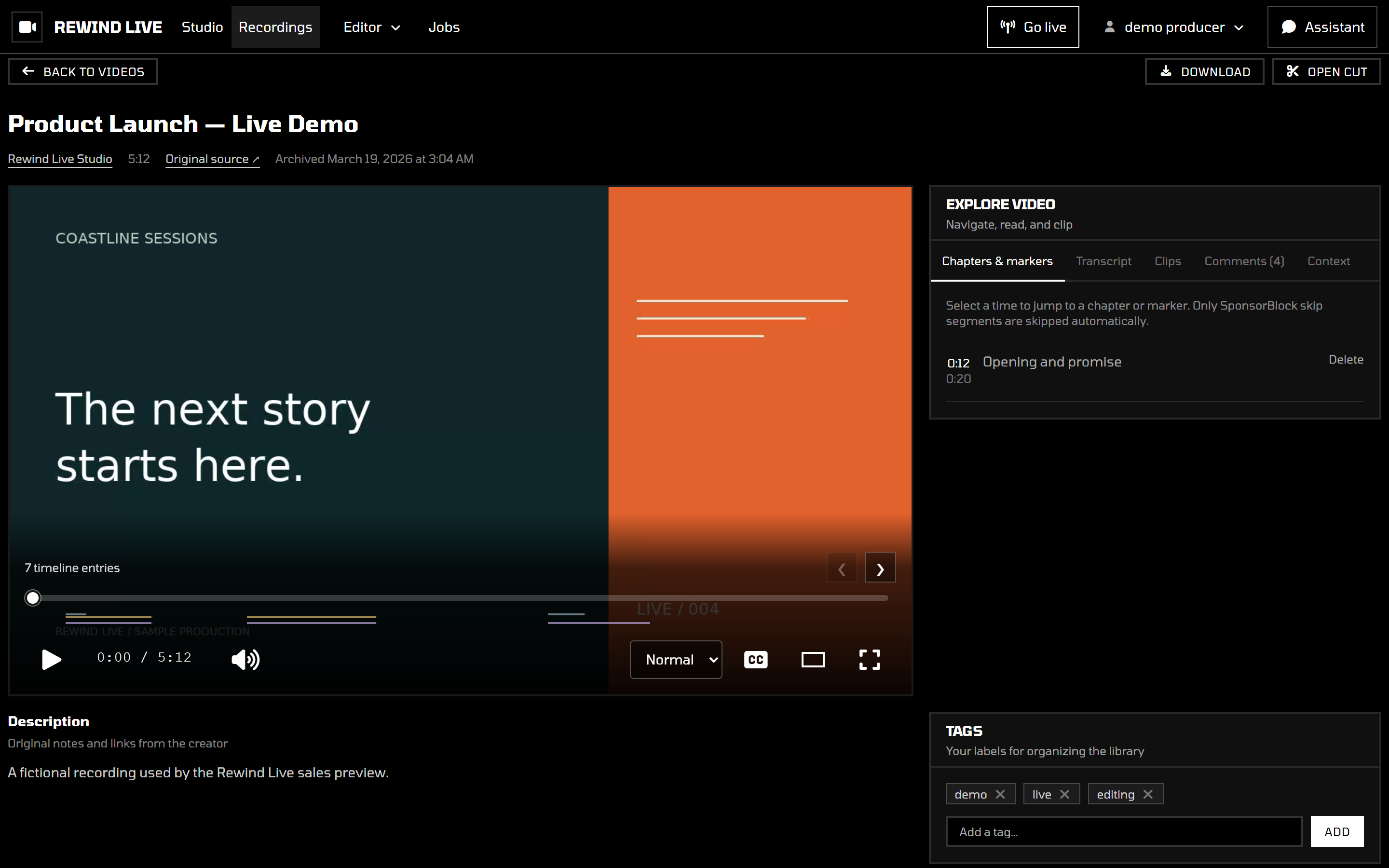
When your broadcast ends, Rewind Live processes the recording and saves it to your private library. That's your master: the source you can watch, clip, and come back to for future edits.
- Browse and play past shows in your browser
- Keep recordings private to your workspace
- Choose the storage allowance and retention that fit your show
A quick clip or
a whole new cut.
Your recording is already here. Open it in the browser and start editing without downloading the full show.
Save the moment worth sharing.
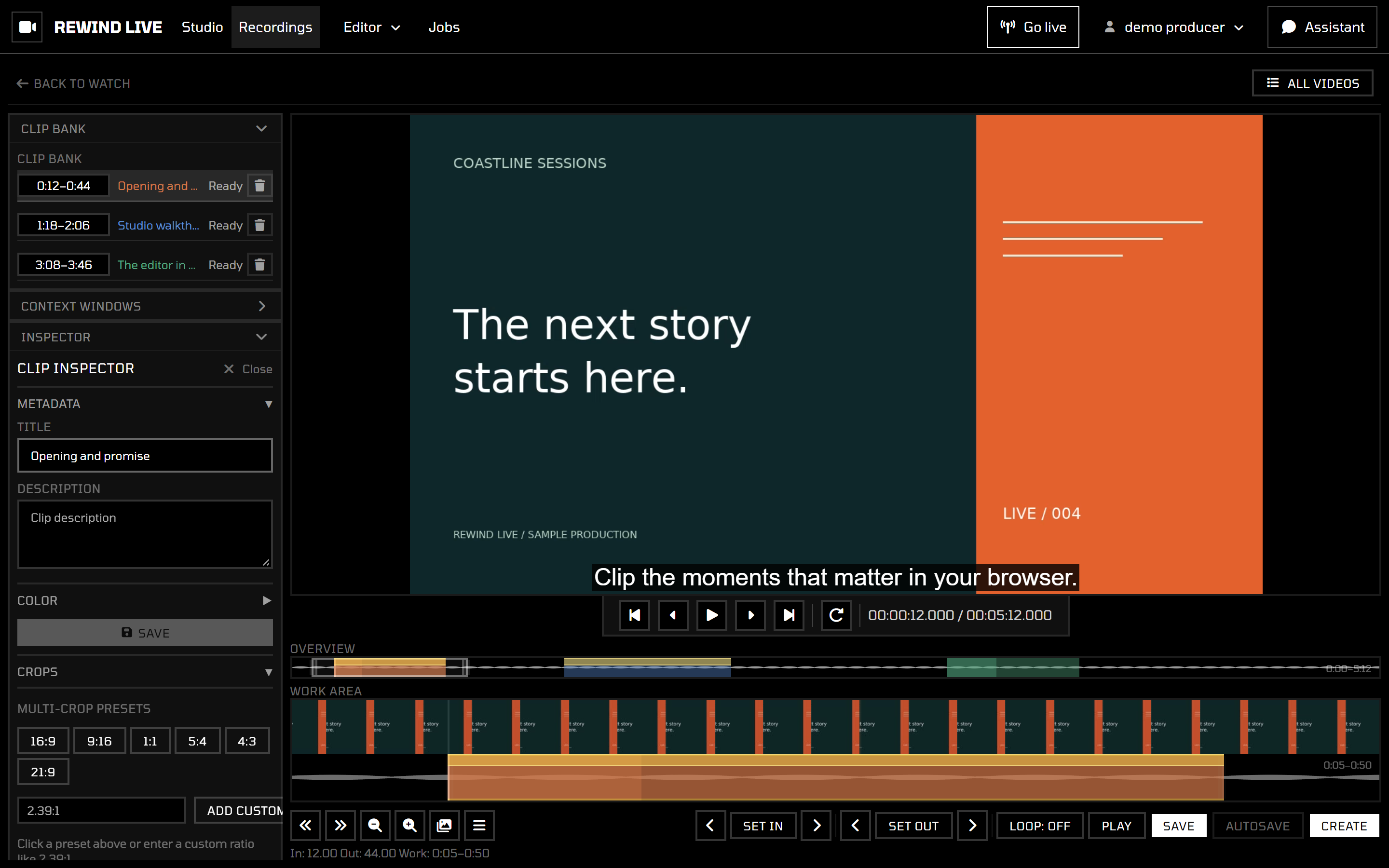
Find the moment you're looking for, zoom in, and mark where the clip starts and ends. Step through frame by frame to get the timing right, then name it and save it to your clip bank.
- Find your place with video thumbnails and an audio waveform
- Fine-tune the start and end with frame controls
- Keep named clips ready for your next edit
Put the moments in order.
Bring clips and recordings into a Stitch project, arrange them on the timeline, and watch the sequence back. Adjust the timing until it feels right, then save the project to pick up later.
Make a highlight reel, recap an interview, or pull together a compilation from past shows.
Build your first Stitch ↗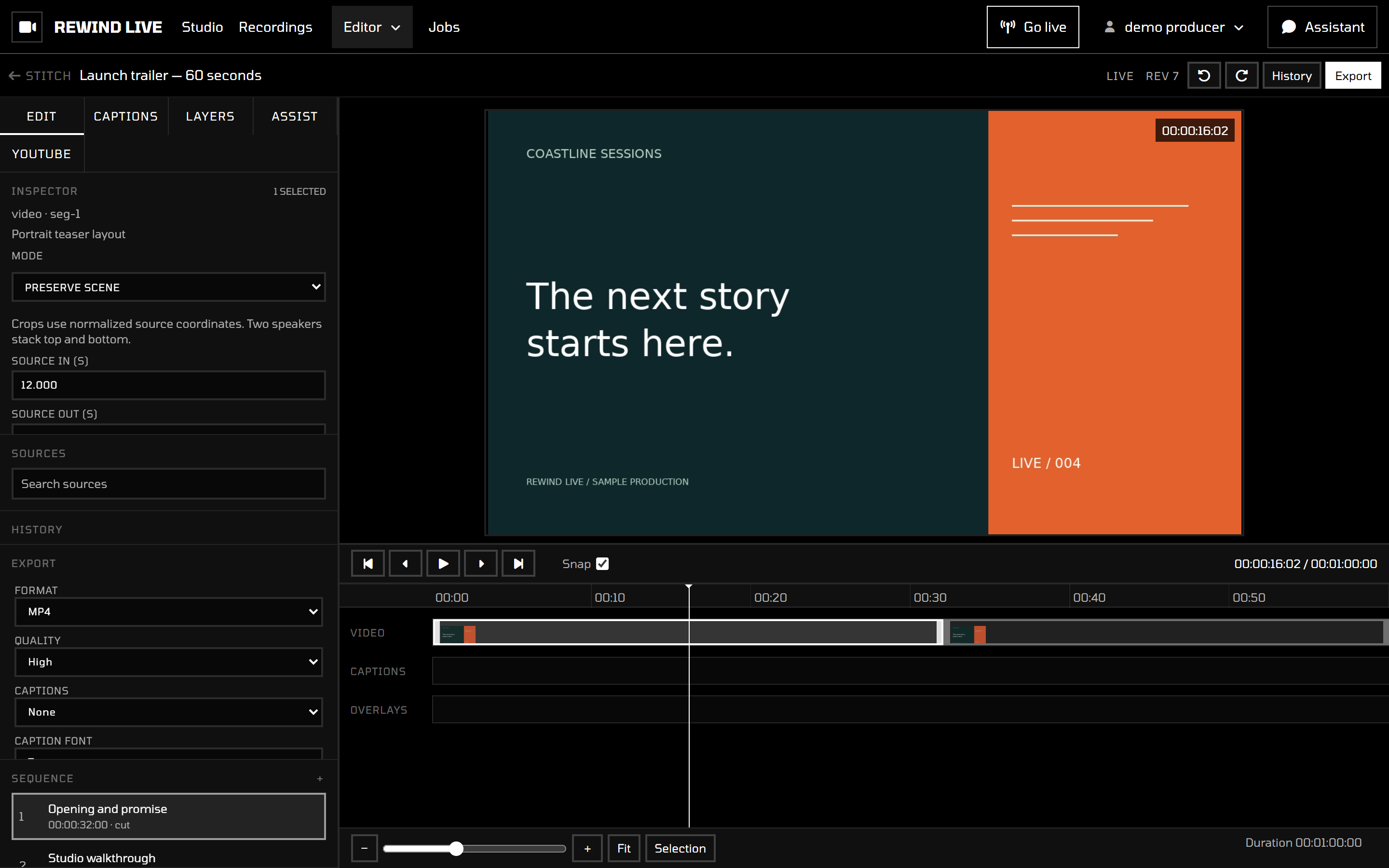
Download the finished edit.
Happy with the cut? Choose your export settings and let Rewind prepare the file. When it's ready, download it to share wherever you publish.
Longer or more complex edits can take more time. Keep the source recordings in your workspace until the export finishes.
How to export your edit ↗Keep the context.
Find the next moment.
The edit starts with knowing what you have. Keep the words, sources, and notes close to your recordings.
Transcripts, captions,
and chapters.
Find a phrase in the transcript, listen to it in context, and bring captions into your edit. Generate suggested chapters and short moments to review, then adjust them against the recording.
Style captions in Stitch, add titles and overlays, and export a finished video or a separate caption file.
Work with transcripts and captions ↗Review suggested chapters ↗
A rundown
you can work from.
Write show notes together, gather source links, and keep timecodes beside the discussion. YouTube references play in the note. Click a timestamp to jump to the moment, preview a range, or copy a timed link for a teammate.
External references stay in their provider's player. Your own recordings remain the source for clips and exports.
Build your show notes ↗Remember what
the team already knows.
Keep research and recurring topics in your workspace wiki. Link related pages, search past notes, and check the revision history when something changes.
Explore the workspace wiki ↗Connect an assistant ↗
A few more details.
These are real application screens with sample shows. Select any screenshot to see it at full size.
Give your audience a place to gather.
Looking for episode management, paid memberships, or ticketed events? Our other service, thirdcoast.tv, brings your shows and your audience together.
Explore thirdcoast.tv- Episode management
- Membership tiers
- Ticketed live events
- Polls & more
Good shows deserve another watch.
Go live, keep the recording, and make something more from it.