Connect your encoder
Create an input and connect OBS to Rewind Live.
Create a live input
An input is the connection your encoder sends to. A destination is an output that receives that feed. Name inputs after a production or source so your team can distinguish them.
In Studio, enter an Input name and select Create input. Creating inputs and accessing stream credentials requires a workspace administrator. Your active plan must have room for another input.
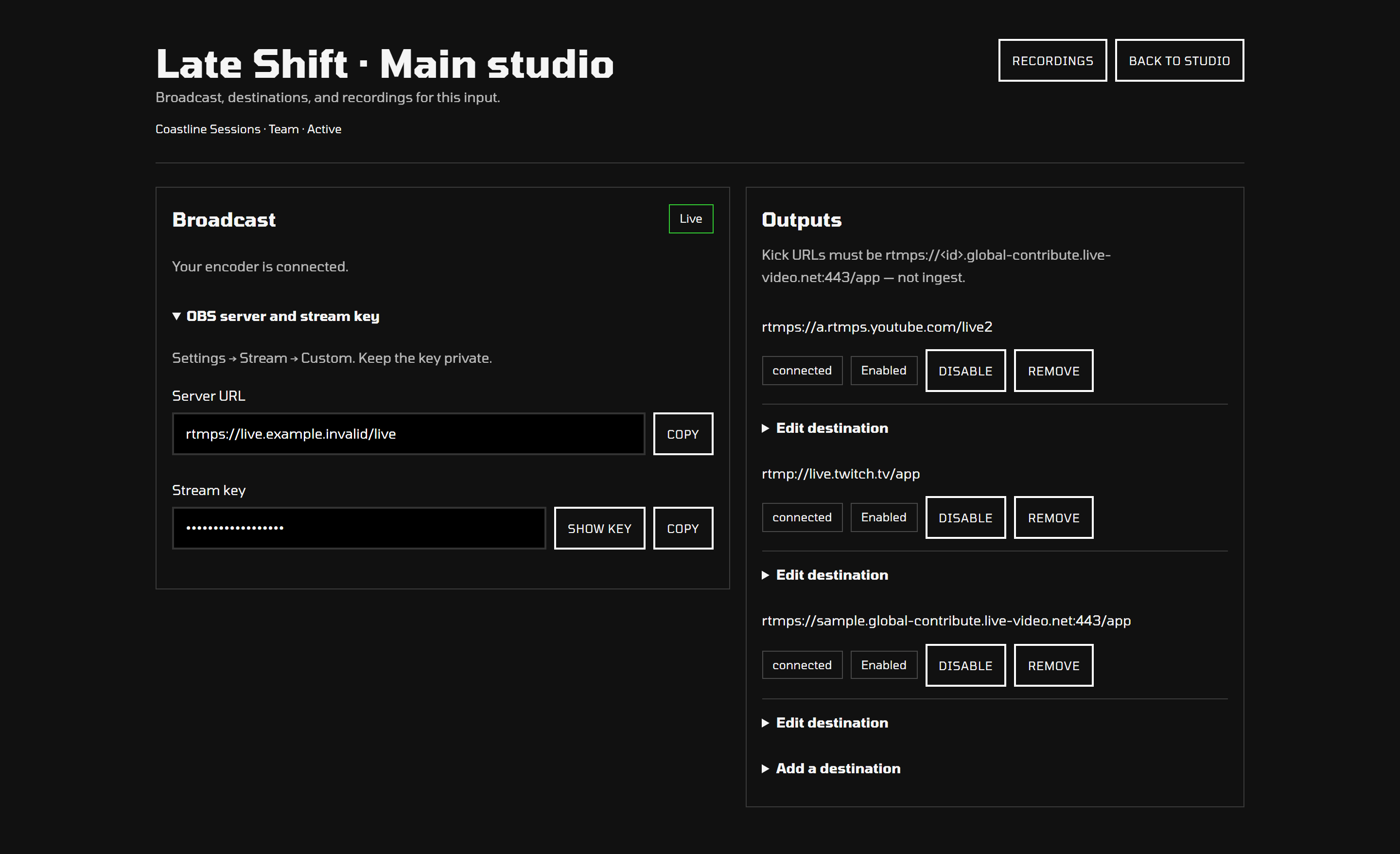
Connect OBS
- In OBS, open Settings → Stream.
- Choose Custom as the service.
- Copy Server URL from Studio to OBS's server field.
- Copy Stream key from Studio to OBS's stream key field.
- Apply the settings.
Use the complete URL as shown in Studio. Keep the server and key in their separate fields. Other encoders can use the same connection details when they support the input protocol.
In Settings → Output → Streaming, set Keyframe Interval to 2 seconds and B-frames to 0. That keeps the preview and your destinations in sync.
Protect the stream key
The input key lets an encoder broadcast into your workspace. Studio hides it by default. Copy copies it without revealing it on screen; Show key reveals it when needed.
Avoid including keys in screenshots, screen shares, support requests, or saved notes that others can read. If a key is exposed, contact your service administrator to arrange a replacement before using that input again.
Test the complete path
Add your destinations before starting a test broadcast. Verify the incoming feed in your platform dashboards, then stop the encoder. Wait for the private master in Recordings and play it back.
If Studio says live streaming is unavailable, the service's streaming connection needs attention. Contact your service administrator; repeatedly recreating inputs will not resolve that configuration problem.