Your first stream
Set up your workspace, go live, and find your recording.
The workflow
Rewind Live connects three steps: send your live feed to several destinations, save the completed show as a private recording, then clip and stitch in the browser.
You need a Rewind Live account, an active workspace plan, a live encoder such as OBS, and streaming access on your destination platforms.
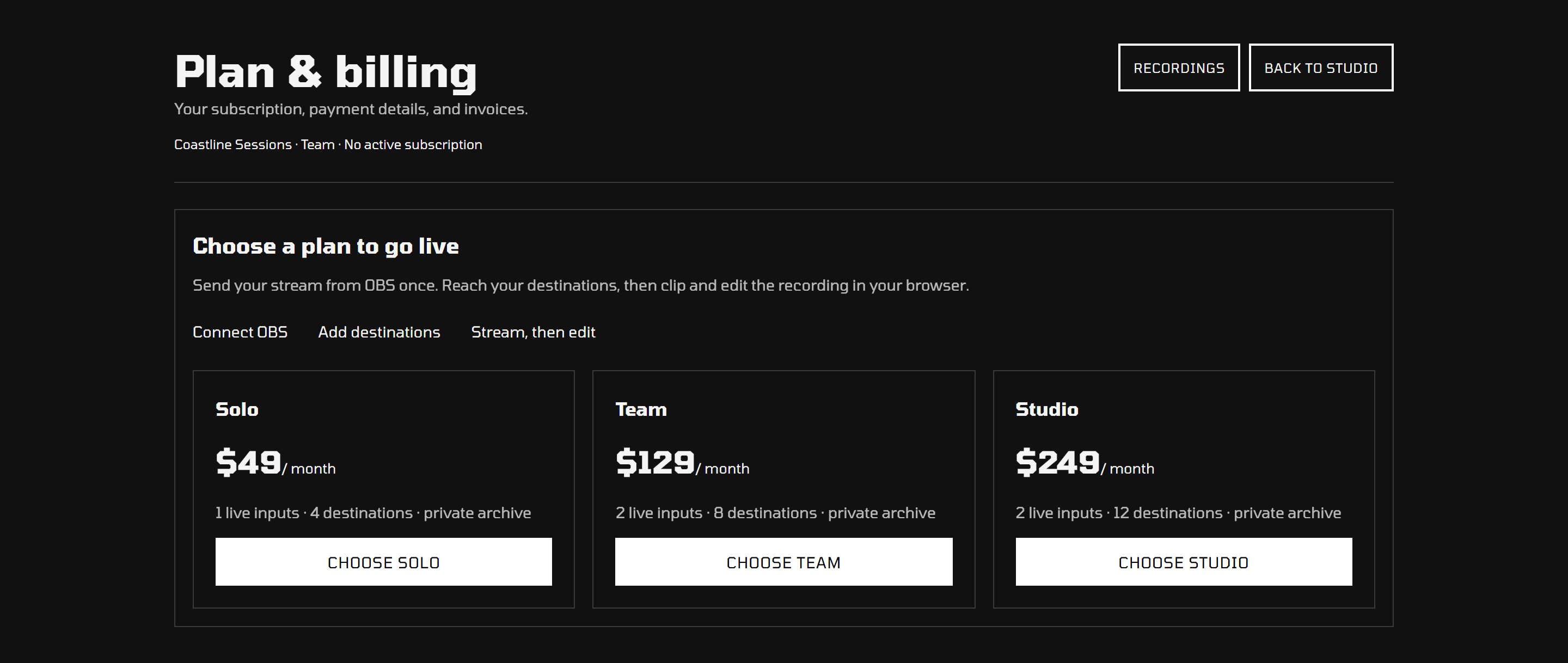
1. Choose your plan
Create an account and choose a plan for your workspace. You can also choose one from Plan & billing. See the plan comparison for prices, inputs, destinations, and recording retention.
If subscriptions are unavailable, contact your service administrator. An account alone does not activate a paid live plan.
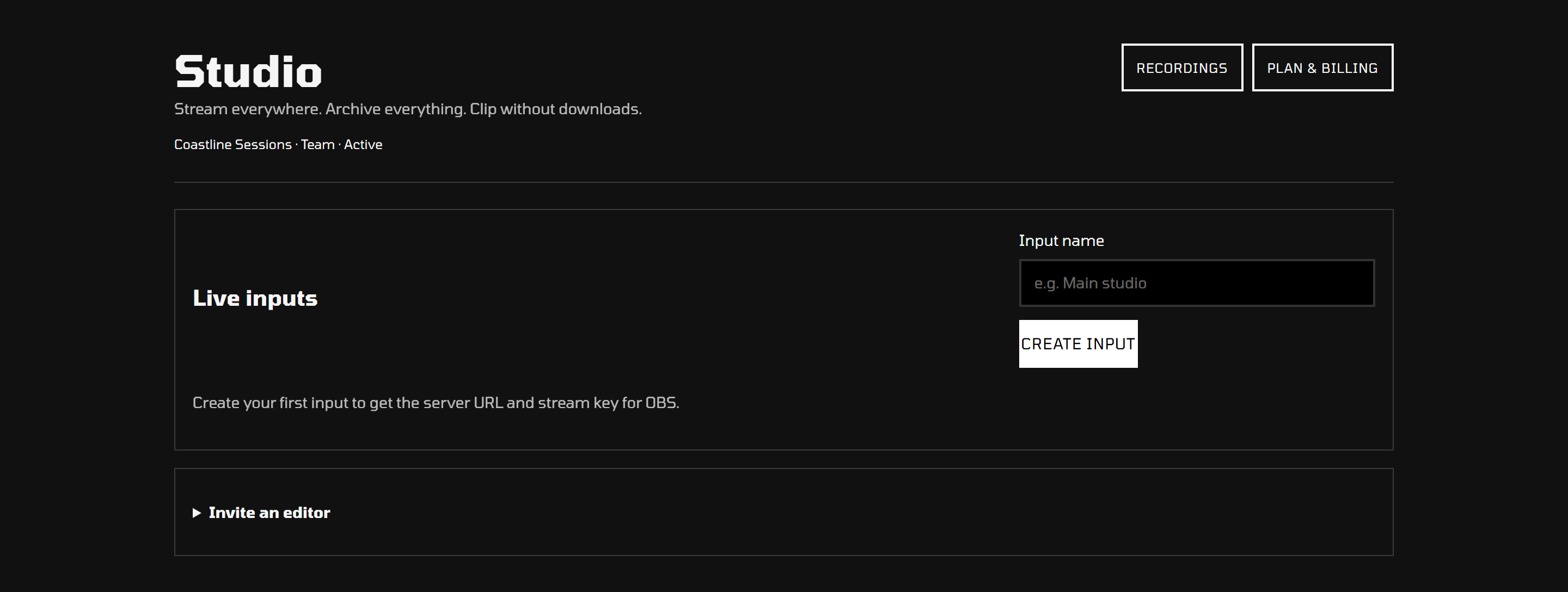
2. Connect your live input
Open Studio and give your input a recognizable name, such as “Main studio.” Select Create input. In OBS, open Settings → Stream, choose Custom, and copy the input's server URL and stream key into the matching fields.
Keep the key private. The encoder guide walks through the connection.
3. Add destinations and go live
Under Destinations, choose a platform card and paste that platform's stream key. YouTube, Twitch, Facebook, and Dailymotion only need the key. Kick, TikTok, X, Rumble, Vimeo, and LinkedIn also need the stream URL from that platform. Use Custom for Patreon and any other server. These credentials are separate from your Rewind Live input key.
Start the stream in your encoder. Check each platform's own dashboard to confirm that the broadcast is reaching its audience. Some platforms require you to publish or start the broadcast there as well.
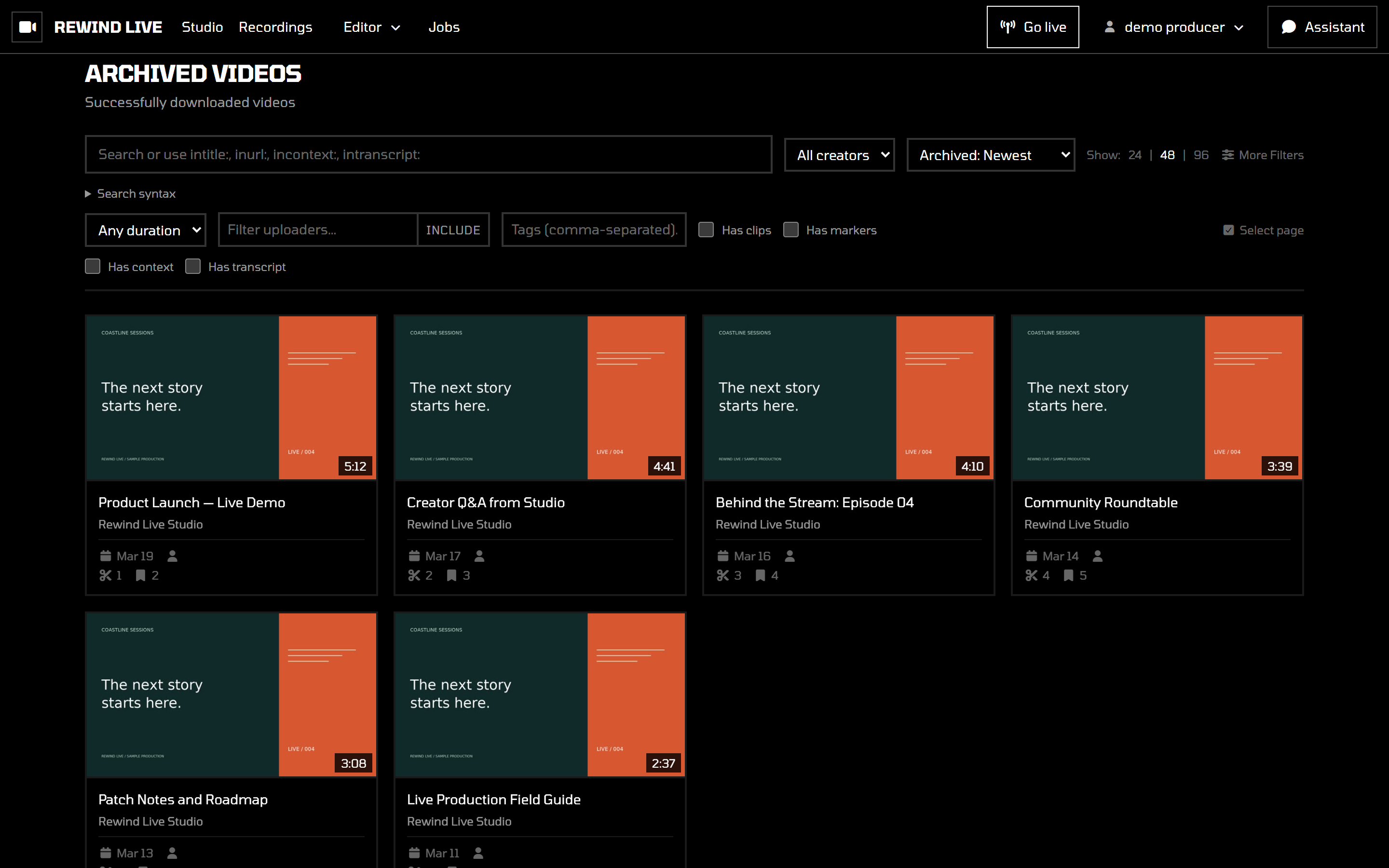
4. Stop, then open the recording
Stop streaming in your encoder when the show is over. The recording needs to finish processing and archiving before it appears in Recordings. Longer broadcasts may take more time.
Open the recording to review it, then make a clip or build a compilation.
Before your first production
Run a short test broadcast, check every destination, stop the encoder, and make sure you can play the recording. You'll know the whole setup works before your first show.