Add your destinations
Send one live feed to your streaming platforms.
Gather the stream key
Open the streaming settings for the platform you want to reach and copy its stream key. Your account on each destination must have streaming enabled. Platform dashboards and publishing requirements vary.
Rewind Live already knows the server for these platforms. Paste only the stream key:
- YouTube
- Twitch
- Facebook. Use the persistent key from Live Producer. If Facebook shows a different server, choose Custom and paste that server too.
- Dailymotion. Paste the key exactly as shown, including the
?auth=part. Live streaming there requires a paid Dailymotion plan.
These platforms give you a server URL as well as a key. Paste both:
- Kick. Use the URL from Kick → Settings → Stream. That URL is specific to your channel.
- TikTok. The server URL changes for each live session.
- X (x.com). In Media Studio, create an RTMP source, pick a region, and copy the server URL and stream key. The server depends on the region.
- Rumble
- Vimeo. Copy the RTMPS URL and stream key from the event's stream panel.
- LinkedIn Live. Schedule the event, then copy the stream URL and key. The URL changes per event.
Use Custom for any other RTMP or RTMPS server. Patreon Live shows a new server URL for each session, so paste that URL under Custom. Streamyard sends a broadcast out to other platforms. It is not a destination you add here. Trovo is shutting down its live feature, so leave any remaining Trovo server on Custom.
Add a destination in Studio
- Open the input that should send to the platform.
- Under Destinations, choose the platform card.
- Paste the stream key. If the card is under Paste a stream URL, paste the server URL as well.
- Select Add destination.
Repeat for your other destinations, within your plan's allowance. Destination management requires a workspace administrator.
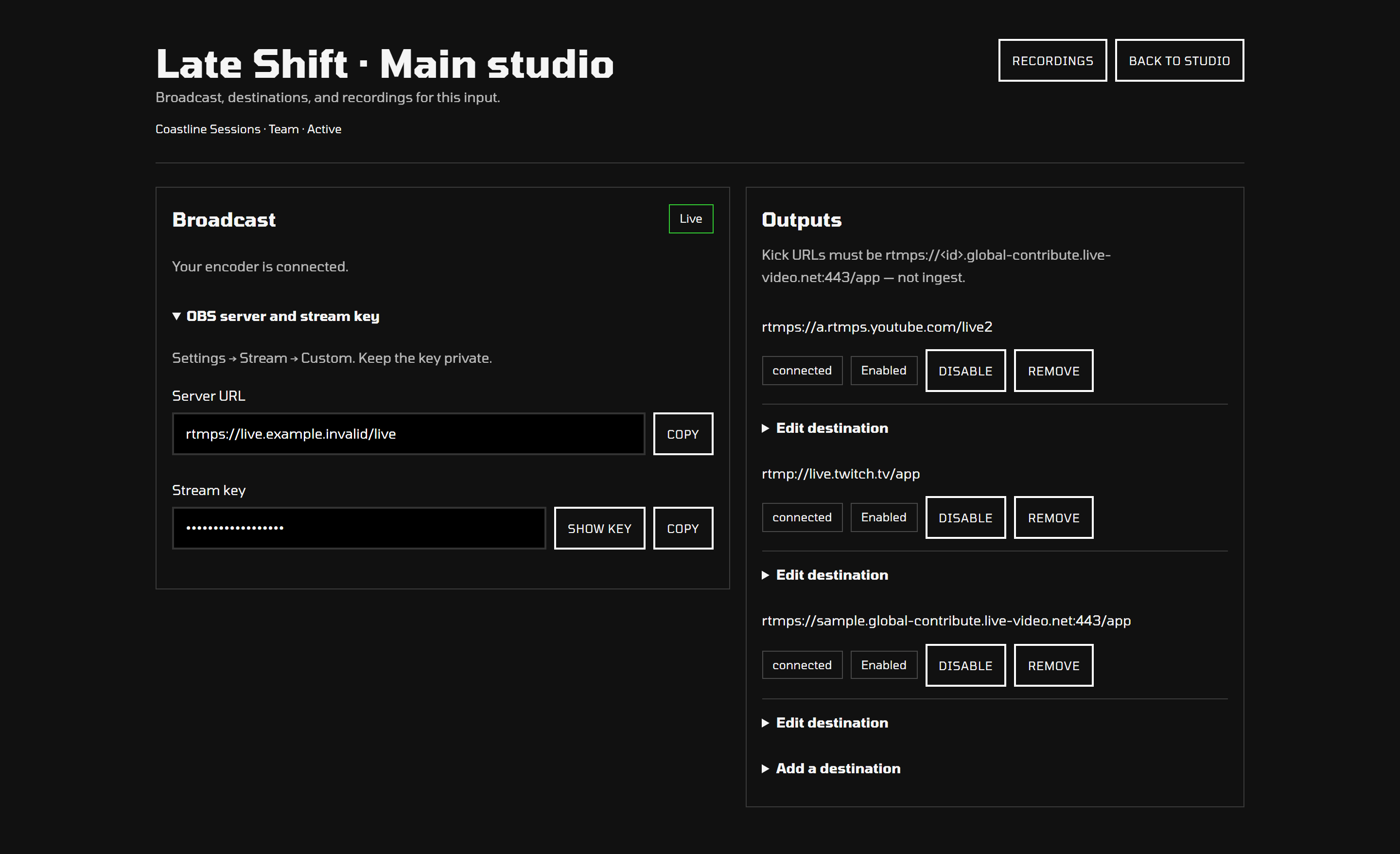
Check the broadcast
Start your encoder and check each platform's dashboard. An enabled destination in Studio means the output is configured; it does not prove that the platform has published your broadcast.
If one platform receives no video, check that destination's stream key and the platform's own broadcast state. If none receive video, check the encoder's connection to the Rewind Live input first.
Keep credentials separate
The input stream key connects your encoder to Rewind Live. A destination stream key connects Rewind Live to a platform. Using the same key in both places will not work unless the platform explicitly provided it for that connection.
Keys are secrets. Do not post them in a support request. Share the input name, destination platform, approximate time, and the error text instead.